Sunday, 27 June 2021

D 365 FO Command / Script to make the Development Env to Maintenance Mode

//Run the Command in Powershell

Maintenance On

C:\AOSService\PackagesLocalDirectory\bin\Microsoft.Dynamics.AX.Deployment.Setup.exe --metadatadir C:\AOSService\PackagesLocalDirectory --bindir C:\AOSService\PackagesLocalDirectory\bin --sqlserver . --sqldatabase axdb --sqluser [AXDBAdminUsername] --sqlpwd [Password] --setupmode maintenancemode --isinmaintenancemode true


Maintenance off

C:\AOSService\PackagesLocalDirectory\bin\Microsoft.Dynamics.AX.Deployment.Setup.exe --metadatadir C:\AosService\PackagesLocalDirectory --bindir J:\AosService\PackagesLocalDirectory\Bin --sqlserver . --sqldatabase axdb --sqluser [AXDBAdminUsername] --sqlpwd [Password] --setupmode maintenancemode --isinmaintenancemode false


//Run the Query on MSSQL Query browser

select Value from sqlsystemvariables a where a.PARM = 'configurationmode'

update sqlsystemvariables set VALUE = 1 where PARM = 'configurationmode'


The best result you'll get it after restarting IIS services (iisreset) cmd


Thank you,

Keep Daxing :)

Wednesday, 23 June 2021

D 365 FO to refresh caller FormDataSource from a Extension Class

 class UpdatePurchLine_Extension

{

static void main(Args args)

{

PurchLine purchLine;

FormDataSource purchLine_DS;

purchLine_DS = args.record().dataSource();

;


purchLine = args.record();


//Set of Code

purchLine_DS.executeQuery();

purchLine_DS.refresh();

}


}


Thank you,

Keep Daxing :)

Tuesday, 22 June 2021

D 365 FO Enable or disable field based on condition using Extension Class

 [FormDataSourceEventHandler(formDataSourceStr(PurchTable, PurchLine), FormDataSourceEventType::Activated)]

    public static void PurchLine_OnActivated(FormDataSource sender, FormDataSourceEventArgs e)

    {

        //Declaration of the Form Datasource

        FormDataSource              fds             = sender.formRun().dataSource(formDataSourceStr(PurchTable,PurchLine));

        PurchLine                   purchLine       = fds.cursor();

        FormRun                     fr              = sender.formRun();

        PurchParameters             purchParameters = PurchParameters::find();

        boolean                     allowEdit = true;

        //Form Tab page declaration for allowing to customize

        FormTabPageControl          ftpc = fr.design(0).controlName("TabLineFixedAsset");


        allowEdit = purchParameters.BER_AllowEditPOLineAfterReceipt;

        //condition

        if(PurchLine.PurchStatus == PurchStatus::Received)

        {

            //controls where the enable set true or false based on the condition execution

            fds.object(fieldNum(PurchLine ,PurchQty)).allowEdit(allowEdit);

            fds.object(fieldNum(PurchLine ,PurchPrice)).allowEdit(allowEdit);

            fds.object(fieldNum(PurchLine ,LineAmount)).allowEdit(allowEdit);

            fds.object(fieldNum(PurchLine ,DiscAmount)).allowEdit(allowEdit);

            fds.object(fieldNum(PurchLine ,DiscPercent)).allowEdit(allowEdit);

           //Fixed asset tab enable false if the Ststus is received.

            ftpc.allowEdit(false);

        }

    }


Thank you,

Keep Daxing :)

Thursday, 10 June 2021

D365 FO Refresh Called from after function call

 Hi All,

The below code will help you to refresh the call from after the data operations, for me I'm refreshing the PurchTable form after duplicating line from exiting lines.


 protected static  void updateCaller(PurchTable  _purchTable)

    {

        PurchTable  purchTable = _purchTable;//purchTable::find(PurchLine::findRecId(_args.record().RecId));

        Object callerPurchTableDataSource = FormDataUtil::getFormDataSource(purchTable);


        if (callerPurchTableDataSource)

        {

            callerPurchTableDataSource.reread();

            callerPurchTableDataSource.refresh();


            if (formDataSourceHasMethod(callerPurchTableDataSource, identifierStr(reReadLines)))

            {

                callerPurchTableDataSource.reReadLines();

            }

        }

    }


Thank you,

Keep Daxing :)

Saturday, 2 May 2020

Create new config file for specific layer in AX 2012


Today I will be discussing how to create a new config file for a specific layer in AX.

The following steps are required for the creation of new config file.


Step 1) Search Microsoft Dynamics AX 2012 Configuration in windows and run it as administrator. It will open Microsoft Dynamics Configuration Utility.


Step 2) Right-click on the Manage button and select create configuration option.


Step 3) Now enter your config name here and click on the ok button. Your new config file will be created.


Step 4) Go to the connection tab.


  • Select the add button if no aos server name is given and provide all details.
  • If you want to verify  AOS server name information then go to the edit button and click it.


Step 5) Go to the Developer  tab. Here you will be able to select your layer. In my case its var layer.


Step 6) Go to the connection tab and click on the refresh button in order to update the configuration.


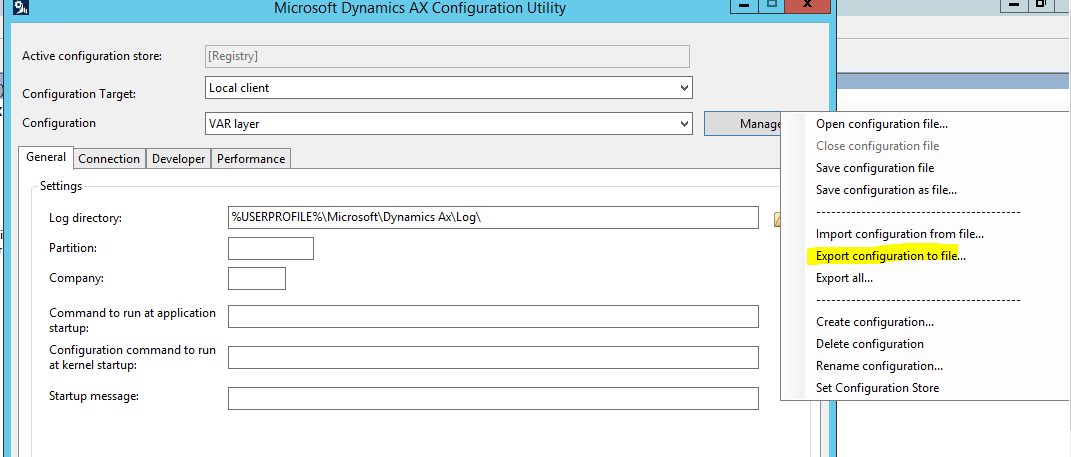
Step 7) Click on the Manager and select the export configuration file option. You will be able to save your config file on the desired path. Now you can use your newly created config file.


Thank you,
Keep Daxing :)